Opening Positive Pay Bank Record Maintenance, click More.
-
Open the program from the Menu Bar as follows:
-
Click Payroll.
-
Click Miscellaneous File Maintenance.
-
Click Positive Pay FM.
-
Click Positive Pay Bank Record.
-
Or, use the keyboard shortcut: [ALT] [p] [m] [p] [b].
Creating a new Bank Record, click More.
To create a new Bank Record, click File
from the Menu Bar, and next
click New.
Keyboard shortcut: [ALT]
[f] [n]
Note: There is only one Bank Record, so normally you only have to create the new record once.
Example:
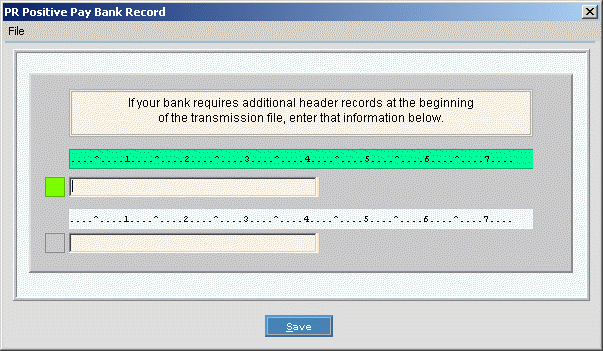
Tip: To
indicate that you are building a new Bank Record,  displays
in the upper right corner. Default
entries display and the first field is highlighted to let you know you
can begin entering information.
displays
in the upper right corner. Default
entries display and the first field is highlighted to let you know you
can begin entering information.
|
Positive Pay Bank Record Maintenance Prompts Tip: To
change the size of the entry fields, point to the right border until you
see the border resizing symbol | |
|
Line 1 |
Enter the first line according to instructions from your bank or financial institution. |
|
Line 2 |
Enter the second line according to instructions from your bank or financial institution. |
|
|
To update the new or changed information, click Save, or press [ENTER] if the button is in focus. Keyboard shortcut: [ALT + s] |
|
To avoid losing data, you must save the new or changed Bank Record. | |
 . Then
drag the border left or right.
. Then
drag the border left or right. CAUTION
Editing an existing Bank Record, click More.
 CAUTION: To
avoid losing data, you must save the new or changed Bank Record.
CAUTION: To
avoid losing data, you must save the new or changed Bank Record.
-
To display the record to be changed, simply open the program.
-
To position the pointer to the information that you want to change, press [TAB] or click the field using the mouse.
-
Enter the data changes.
-
To complete the edit process, click Save
 , or press [ENTER]
if the button is in focus.
, or press [ENTER]
if the button is in focus.
Keyboard shortcut: [ALT + s]
Deleting an existing Bank Record, click More.
-
To display the record to be deleted, simply open the program.
-
Click File from the Menu Bar, and next click Delete.
Keyboard shortcut: [ALT] [f] [d] -
At the Delete Records prompt, click Proceed to delete the record, or click Cancel to escape from the delete routine.
Example: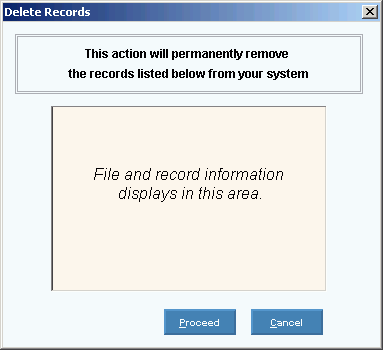
Note: After you click Proceed, you will see the following message on the Status Bar.
