Opening the Mailing Labels, click More.
-
Click Reporting from the Menu Bar.
-
Click Employee Reports / Lists.
-
Click Mailing Labels.
Or, use the keyboard shortcut: [ALT] [e] [l] [l].
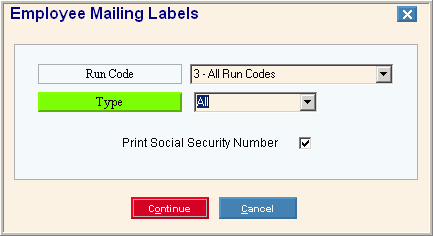
Mailing Labels Window Example:
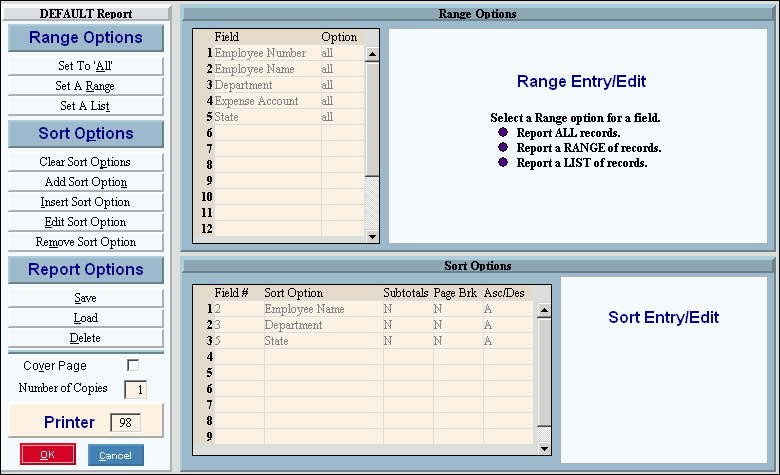
Report Writer Window Example:
Choosing the selections at the prompt window, click More.
Procedure:
-
Fill in the Mailing Labels prompts described below.
-
Click Continue
 to display the Report Writer.
 -
Review the Report Writer prompts and make changes, if applicable.
Tips: -
To send the report to the Print View window, enter the appropriate Printer Number (usually 5).
-
For more information, refer to the Report Writer Overview.
-
Click OK
 to run
the report.
to run
the report.
|
Mailing Labels Prompt Options Tip: To see more information about a field, click the hyperlink for the field name. | |
|
To limit the report to employees assigned to a specific Run Code, click the Run Code in the drop-down list. (1.0 numeric) Tip: To include all Run Codes, click All Run Codes. | |
|
To limit the report to include only hourly or salaried employees, click one of the following options in the drop-down list:
| |
|
Print Social Security Number |
Specify if you want to print the Social Security Number for the employees. |
|
|
After entering the report prompts, click Continue to display the Report Writer prompts. Keyboard shortcut: [ALT + o] |
|
|
To escape from the print routine, click Cancel. Keyboard shortcut: [ALT + c] |

Report Sample(s), click More.
