Employee Rate History Report Instructions
Use the Employee Rate History Report to print rate history information for employees including the current rate, previous rate, review date, and date of hire.
For additional information, click More.
Tips:
This report is also known as the Rate HistoryReport.
To be included in the report, the employee must have a rate history record (created at the Employee Master Maintenance - Employee Rate History Area window).
There is also a Rate History Report that prints with the check registers, which is a tickler for employees with review dates within two weeks.
For more information about running reports, see Print View.
This report is available in the following format(s):
132-Column Page Width: Set during System Parameters at the Print tab.
At the Report Writer window, you can change the selection and sort options for the report. For more information, refer to the Report Writer Overview.
Directions:
To see directions for...
Opening the Employee Rate History Report, click More.
Click Reporting from the Menu Bar.
Click Employee Reports / Lists.
Click
Rate History Report.
Or, use the keyboard
shortcut: [ALT]
[e] [l] [r].
Report Writer Window Example:
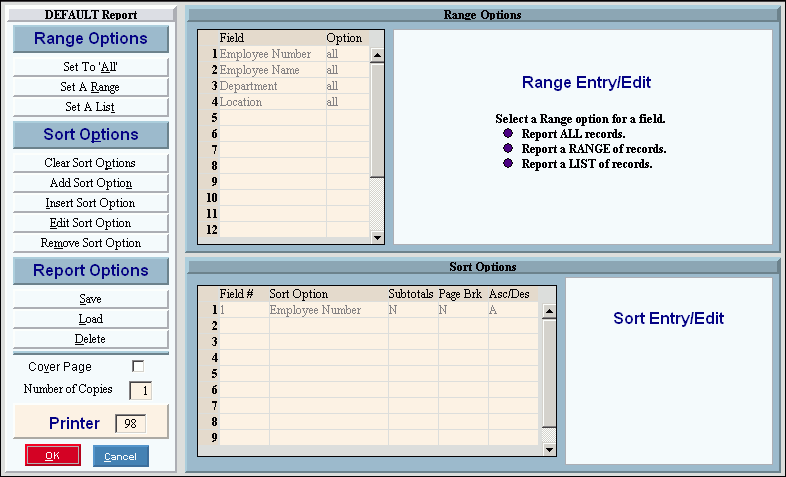
Choosing the selections at the prompt window, click More.
Tip: Other than the Report Writer, there are no specific prompts for the Employee Rate History Report.
Procedure:
Review
the Report Writer prompts and make changes, if applicable.
Tips:
To send the report to the Print View window, enter the appropriate Printer Number (usually 5).
For more information, refer to the Report Writer Overview.
Click
OK
to run the
report.
Report Sample(s), click More.