Opening the Aged Trial Balance Report, click More.
1. Click Reports from the Menu Bar.
2. Click Miscellaneous.
3. Click
Aged Trial Balance Report.
Or, use the keyboard
shortcut: [ALT] [e]
[m] [m] [a].
Aged Trial Balance Report Window Example:
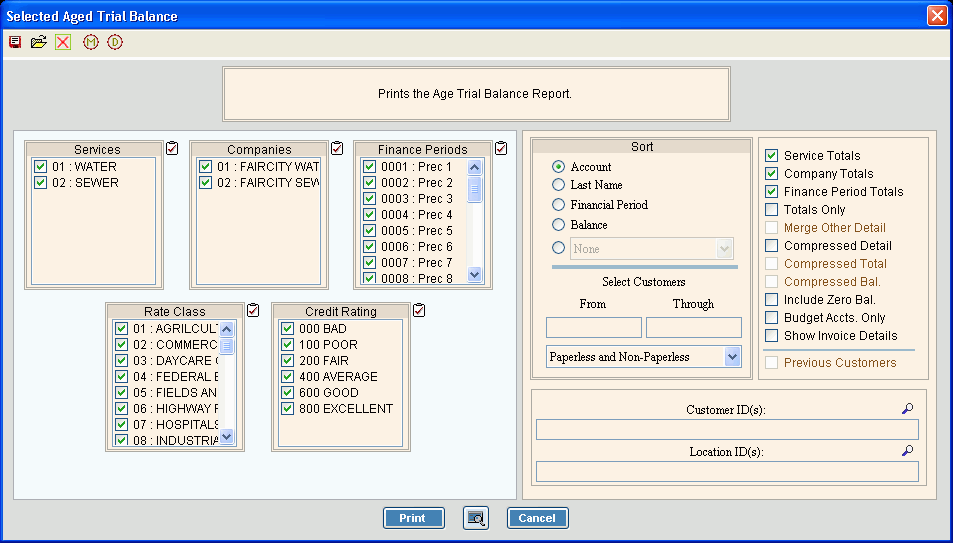
Choosing the selections at the prompt options, click More.
Aged Trial Balance Report Prompt Options Tip: To see more information about a field, click the hyperlink for the field name. |
|
To select the Services to print, click to check the appropriate Services listed. Tip:
To quickly select or de-select all
Services listed, click the |
|
To select the Companies to print, click to check the appropriate Companies listed. Tip:
To quickly select or de-select all
Companies listed, click the |
|
To select the Finance Periods to print, click to check the appropriate Finance Periods listed. Tip:
To quickly select or de-select all
Finance Periods listed, click the |
|
To select the Rate Classes to report, click to check the appropriate Rate Classes listed. Tip:
To quickly select or de-select all
Rate Classes listed, click the |
|
To select the Credit Ratings to report, click to check the appropriate Credit Ratings listed. Tip:
To quickly select or de-select all
Credit Ratings listed, click the |
|
Sort |
To choose a sort option, click to select the appropriate button. Sort Options:
|
Select Customers Note: The From and Through fields are only active if you select Account as the Sort option. |
|
From |
To limit the report to a range of customers, enter the appropriate beginning Customer ID in the range. Tip: To include all customers, leave blank. |
Thru |
To limit the report to a range of customers, enter the desired ending Customer ID in the range. Tip: To include all customers, leave blank. |
Entry Options:
|
|
Service Totals |
To
print totals for each Service Code at
the end of the report, select this box. |
Company Totals |
To
print totals for each Company at the
end of the report, click to select this box. |
Finance Period Totals |
To
print totals for each Finance Period
at the end of the report, click to select this box. |
Totals Only |
To
print totals only while excluding the detail, select this
box. |
Merge Other Detail |
Note: This field is only available if extended aging information is set up. For more information, contact NDS Technical Support. |
Compressed Detail |
To print a compressed detail version of the report where customer information is compressed into a single line, click to select Compressed Detail. Otherwise, leave this box unchecked. |
Compressed Total |
To print a compressed total where customer amounts are accumulated into a single total, click to select Compressed Total. Otherwise, leave this box unchecked. |
Compressed Balance |
To print a compressed customer balance, click to select Compressed Balance. Otherwise, leave this box unchecked. |
Include Zero Balance |
To include all customers on the ATB, click to select Include Zero Balance. Otherwise, leave this box unchecked. |
Budget Accts Only |
To print the report for budget accounts, click to select Budget Accts Only. Otherwise, leave this box unchecked. |
Show Invoice Details |
To include invoice details on the report, click to check this box. To omit invoice details, please leave this box blank. Notes:
|
Previous Customers |
To print previous customers associated with a specified location who have an outstanding balance, click to select Previous Customers. Notes:
|
Entry Options:
|
|
Entry Options:
|
|
|
To begin printing to the Windows® default printer, click Print, or press [ENTER]. Keyboard shortcut: [ALT + p] |
|
To print to the Print View window, click here. |
|
To escape from the print routine, click Cancel. Keyboard shortcut: [ALT + c] |
Server Process Status |
|
Status |
Displays information pertaining to the various phases of the reporting process to guide you. Note: The status displays Complete when the process is ended. In addition, the Message window displays Time Started and Time Ended to alert you when the routine is complete. |
|
To
close the window when the report is complete, click Close |

 .
.


Report Samples, click More.
