Opening Eye Health Exam Lists Maintenance, click More.
1. Click File Maintenance from the Menu Bar.
2. Click EMR Maintenance.
3. Click Value Lists.
4. Click
Eye Health Exam Lists.
Tip: Or,
use the keyboard
shortcut: [ALT]
[m] [m] [v] [y].
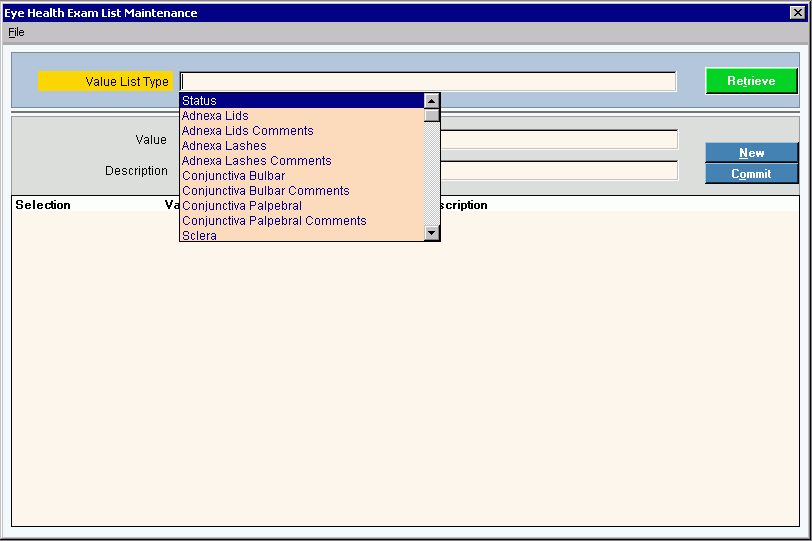
Eye Health Exam Lists Maintenance Window Example:
Creating a New Eye Health Exam Value, click More.
To create a new value to add to the list:
|
Eye Health Exam Lists Maintenance Prompts Tip: To see more information about a field, click the hyperlink for the field name. | |
|
To identify the value list to maintain, click a choice in the drop-down list. Predefined | |
|
|
To display an existing value list, click the desired Value List Type and click Retrieve, or press [ENTER]. Keyboard shortcut: [ALT + t] |
|
|
To complete and commit the entry, click Commit or press [ENTER]. Keyboard shortcut: [ALT + o] |
|
To avoid losing data, you must Commit new or changed records. | |
|
|
To create a new value to add to the list, click New. Keyboard shortcut: [ALT + n] |
|
Enter the value to add to the list. (up to 100 characters) | |
|
Enter the description for the value. (up to 100 characters) | |

Editing an Existing Eye Health Exam Value, click More.
 CAUTION: To
avoid losing data, you must commit new or changed values.
CAUTION: To
avoid losing data, you must commit new or changed values.
1. To
display the record to be changed, click the appropriate Value
List Type in the drop-down list and click Retrieve
 , or press [ENTER].
Keyboard shortcut: [ALT
+ t]
2. To position the pointer to the information that you want to change, press [TAB] or click the field using the mouse.
3. Enter the data changes.
4. To
complete the edit process, click Commit  , or press [ENTER].
Keyboard shortcut: [ALT
+ o]
Deleting an Existing Eye Health Exam Value, click More.
1. To
display the record to be changed, click the appropriate Value
List Type in the drop-down list and click Retrieve, or press [ENTER].
Keyboard shortcut: [ALT
+ t]
2. Click
File from the Menu
Bar, and next click Delete.
Keyboard shortcut: [ALT]
[f] [d]
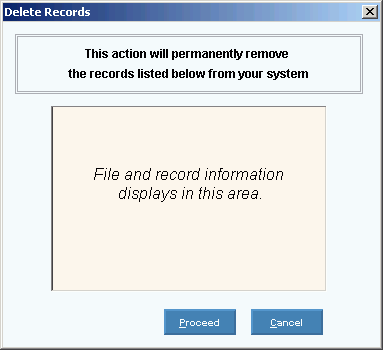
3. At the Delete Records prompt, click Proceed to delete the record, or click Cancel to escape from the delete routine.
Example:
Note: After
you click Proceed, you will see
the following message on the Status Bar.
