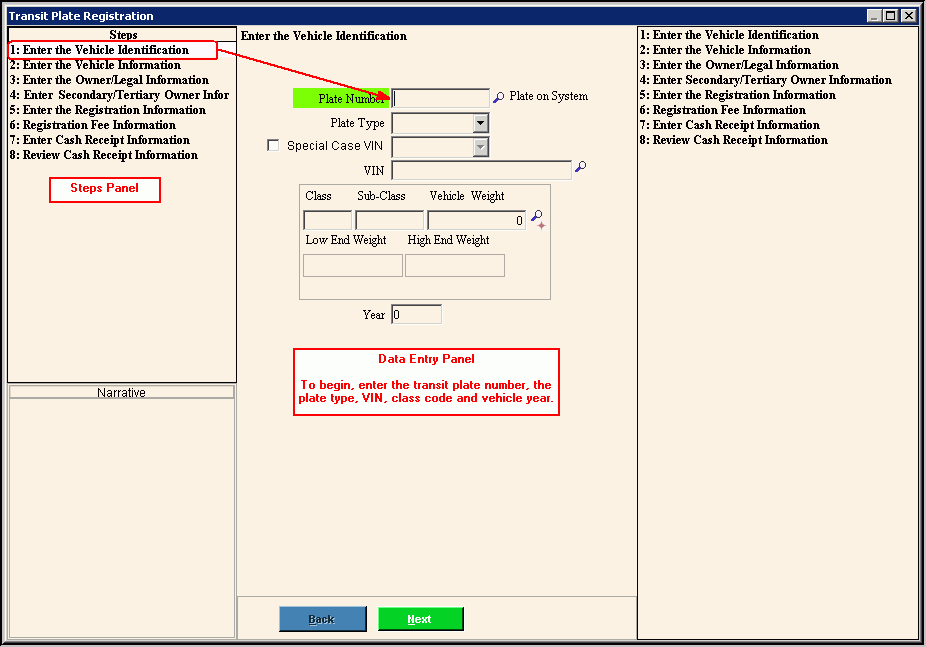
Transit Plate Registration Wizard - Enter Vehicle Identification Step
Use the Enter Vehicle Identification Step to enter the vehicle identification information for the vehicle to be issued a temporary transit plate You can enter the plate number, plate type, Vehicle Identification Number and the class code during this step. The table following the panel example describes the data entry for this step in the Transit Plate Registration Wizard.
Tips:
For general information about using wizards, see the Wizard - Introduction.
For more information about working with data in fields, see the Data Entry Guidelines.
Directions:
To display the Enter Vehicle Identification Step in the Data Entry Panel, simply open the Transit Plate Registration Wizard.
Data Entry Panel - Enter Vehicle Identification Step Example:
Data Entry Panel - Enter Vehicle Identification Step Prompts Tip: To see more information about a field, click the hyperlink for that field name. |
|
Enter the transit plate number for the vehicle. (up to 8 characters) REQUIRED Note: The plate number is verified and can be recognized if the plate has been issued previously. |
|
To specify the type of plate, click a choice in the drop-down list. |
|
To specify the VIN is a special case, click to select the box. Or, to indicate the VIN is not a special case, leave the box blank. |
|
If you selected Special Case VIN above, click to select from the drop-down list the type of VIN to generate. Note: This field is only active if you select Special Case VIN. |
|
Enter the vehicle identification number. Or, press [TAB] to skip this field, if applicable. (up to 17 characters) REQUIRED |
|
Enter the defined code that uniquely identifies the Class Code for the transit plate, for example, TP1 or TP2. REQUIRED Notes:
|
|
If you selected a Class Code from the list, the associated sub-class automatically displays. Or, enter the defined code for the sub-class for the registration. REQUIRED Notes:
|
|
Enter the registered vehicle weight, if applicable. Note: The Vehicle Weight only pertains to certain Class Codes. |
|
Displays the low end of the vehicle weight range for the entered Class Code. |
|
Displays the high end vehicle weight range for the entered Class Code. |
|
Enter the year the vehicle was manufactured. (4.0 numeric) REQUIRED Note: The year is verified based on the VIN entered below. |
|
|
To display the previous step, click Back. Keyboard shortcut: [ALT + b] Tip: Back is not active for the first step. |
|
To display the next step, click Next or press [ENTER]. Keyboard shortcut: [ALT + n] |
|
To close the wizard without validating or saving the data, click Close. |
 or press
  or
press
or
press 

