 until
it displays in the Data Entry Panel.
until
it displays in the Data Entry Panel.Transit Plate Registration Wizard - Enter Registration Fee Information Step
Use the Registration Fee Information Step to maintain the fees for the vehicle's temporary transit plate registration. The table following the panel example describes the data entry for this step in the Transit Plate Registration Wizard.
Note: Excise tax is not assessed for a transit plate registration.
Directions:
To display the Enter Registration Fee Step in the Data Entry Panel:
1. Open the Transit Plate Registration Wizard.
2. To navigate
to the Enter Registration Fee Information
step, click Next until
it displays in the Data Entry Panel.
Data Entry Panel - Enter Registration Fee Information Step Example:
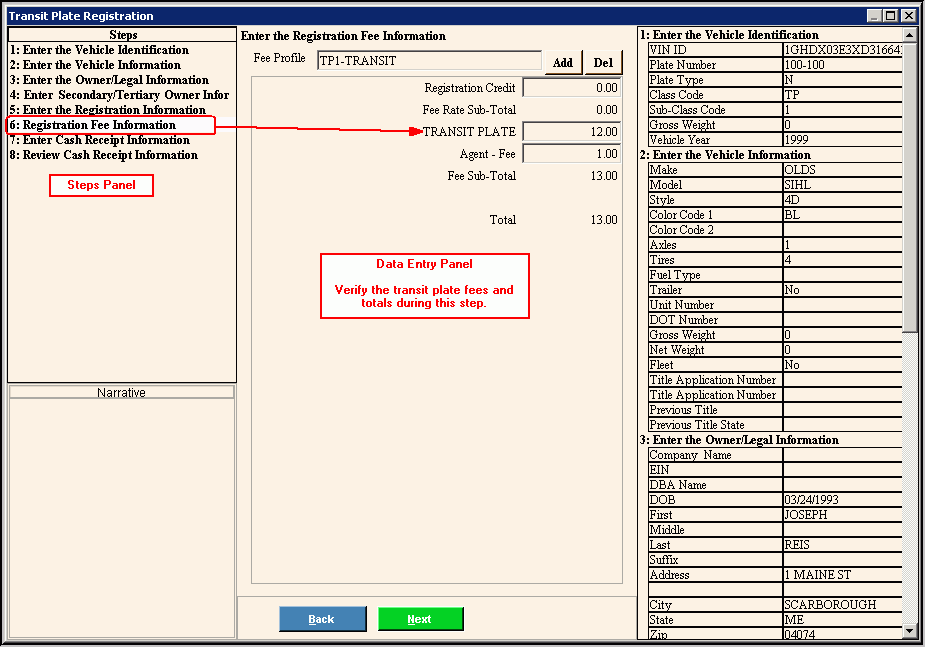
Data Entry Panel - Enter Registration Fee Step Prompts Tip: To see more information about a field, click the hyperlink for that field name. |
|
Displays the Fee Profile based on the class code and type of registration you are entering. |
|
|
To add an additional fee that is not currently listed, click Add Fee. Note: From the Fee Code Search window, click to select the appropriate fee to add. |
|
To remove a fee that was added, but should not be assessed for this transaction, click Delete Fee. |
Registration Credits |
Enter the dollar amount of registration credits, if applicable. |
Displays for your reference the calculated dollar amount of the rate minus the registration credit amounts. |
|
To accept the default agent fee for the transit plate registration, press [TAB] or enter another agent fee. (10.2 numeric) |
|
Displays for your reference the accumulated dollar sub-total amount. Fee Sub-total = transfer fee + sales tax + agent fee |
|
Displays for your reference the accumulated total dollar. Total = fee rate sub-total + fee sub-total |
|
|
To display the previous step, click Back. Keyboard shortcut: [ALT + b] |
|
To display the next step, click Next or press [ENTER]. Keyboard shortcut: [ALT + n] |
|
To close the wizard without validating or saving the data, click Close. |


