Click Enter Registration Information in the Steps Panel.
Or,
click Next  or
click Back
or
click Back  until
the data that you want to maintain displays in the Data Entry Panel.
until
the data that you want to maintain displays in the Data Entry Panel.
Special Permit Wizard - Enter Registration Information Step
Use the Enter Registration Information Step to maintain the effective date and expiration date for the special permit. The table following the panel example describes the data entry for this step in the Special Permit Wizard.
Tip: For general information about using wizards, see the Wizard - Introduction.
Directions:
To display the Enter Registration Information Step in the Data Entry Panel:
1. Open the Special Permit Wizard.
2. To navigate to the step that you want to maintain:
Click Enter Registration Information in the Steps Panel.
Or,
click Next or
click Back until
the data that you want to maintain displays in the Data Entry Panel.
Data Entry Panel - Enter Registration Information Step Example:
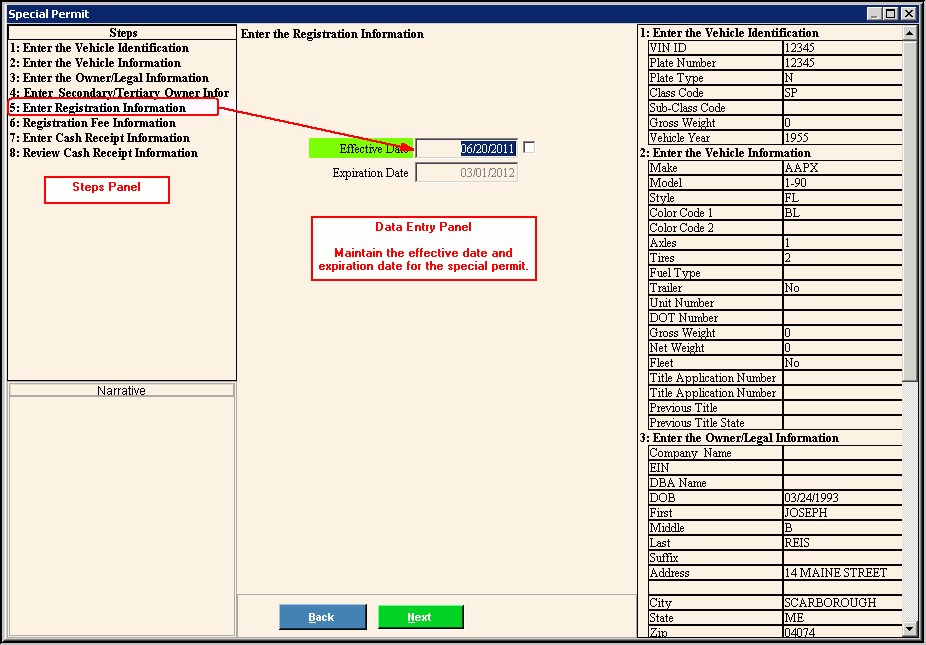
Data Entry Panel - Enter Registration Information Step Prompts Tip: To see more information about a field, click the hyperlink for that field name. |
|
Enter the effective date for the special permit for the vehicle. (mmddccyy, slashes and century optional) REQUIRED |
|
Displays the special permit expiration date, which is always month 03, day 01, and year less than one year away. (mmddccyy, slashes and century optional) REQUIRED Note: To edit the expiration date, click to select the box to the left of the effective date. |
|
|
To display the previous step, click Back. Keyboard shortcut: [ALT + b] |
|
To display the next step, click Next or press [ENTER]. Keyboard shortcut: [ALT + n] Tip: Next is not active for the last step. |
|
To close the wizard without validating or saving the data, click Close. |
