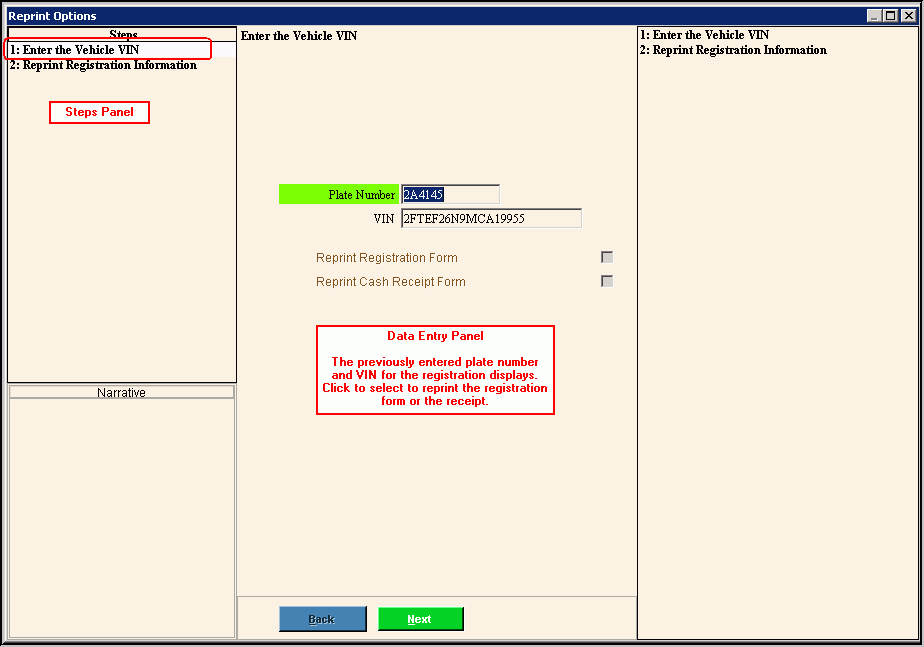
Reprint Options Wizard - Enter Vehicle VIN Step
Use the Enter Vehicle VIN Step to confirm the vehicle registration information displayed is the correct registration to be reprinted. In addition, you can specify whether to reprint the cash receipt or the registration form. The table following the panel example describes the data entry for this step in the Reprint Options Wizard.
Tip: For general information about using wizards, see the Wizard - Introduction.
Directions:
To display the Enter Cash Receipt Information Step in the Data Entry Panel:
1. First, from the Registration Inquiry recall the plate number or VIN for the registration that needs reprinting.
2. Then, open the Reprint Options Wizard and the Enter Vehicle VIN Step displays.
Data Entry Panel - Enter Vehicle VIN Step Example:
Data Entry Panel - Enter Vehicle VIN Step Prompts Tip: To see more information about a field, click the hyperlink for that field name. |
|
Displays the plate number for the registration to reprint for your review. |
|
Displays the vehicle VIN for the registration to reprint for your review. |
|
Reprint Registration Form |
To reprint the MVR-3 registration form, click to select this box. To omit reprinting the MVR-3 registration form, leave this box blank. |
Reprint Cash Receipt Form |
To reprint the cash receipt showing the registrant's payment for the vehicle registration, click to select this box. To omit reprinting the cash receipt, leave this box blank. |
|
Tip: Back is not active for the first step. |
|
To display the next step, click Next or press [ENTER]. Keyboard shortcut: [ALT + n] |
|
To close the wizard without validating or saving the data, click Close. |


