 .
.Replacement Stickers Wizard - Enter Replacement Stickers Information Step
Use the Enter Replacement Stickers Information Step to enter the type of stickers and the sticker number(s) to replace. The table following the panel example describes the data entry for this step in the Replacement Stickers Wizard.
Directions:
1. Before opening the Replacement Stickers wizard, first recall the registration in the Registration Inquiry.
2. Open Replacement Stickers Wizard.
3. To navigate
to the Enter Replacement Stickers Information
step, click Next .
Data Entry Panel - Enter Replacement Stickers Information Step Example:
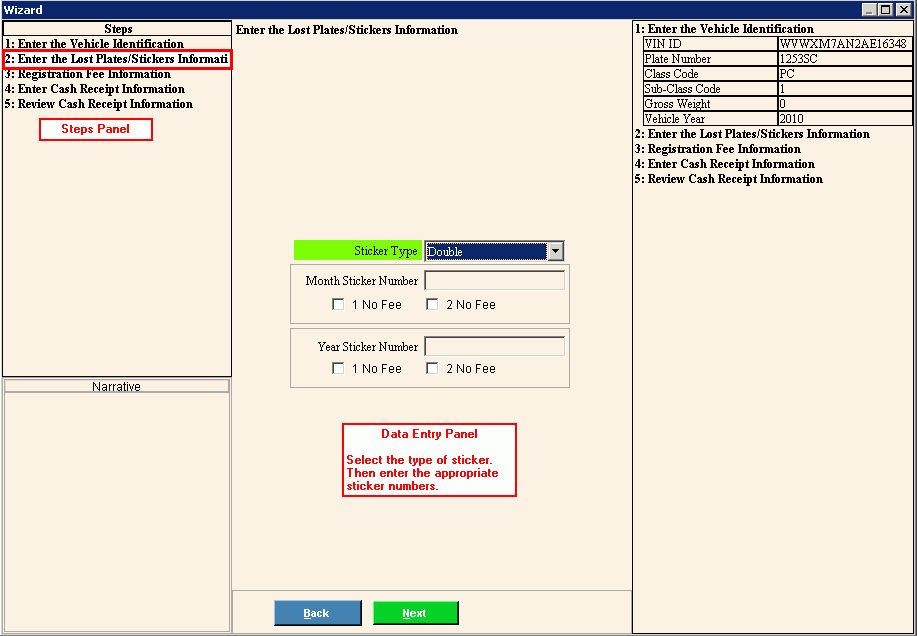
Data Entry Panel - Enter Replacement Stickers Information Step Prompts Tip: To see more information about a field, click the hyperlink for that field name. |
|
To specify the type of registration stickers, click a choice in the drop-down list. |
|
Enter a valid month sticker number that is not issued to another registration. (up to 8 characters) REQUIRED Note: To be valid the Month Sticker Number must be maintained during Inventory Maintenance and must be valid for the month of the registration. (7.0 numeric) |
|
1 No Fee |
To
omit assessing 1 month sticker fee, click to check the 1
No Fee box. |
2 No Fee |
To
omit assessing a second month sticker fee, click to check the
2 No Fee box. |
Enter a valid year sticker number that is not issued to another vehicle. (up to 8 characters) REQUIRED Note: To be valid the Year Sticker Number must be maintained during Inventory Maintenance. (7.0 numeric) |
|
1 No Fee |
To
omit assessing 1 year sticker fee, click to check the 1
No Fee box. |
2 No Fee |
To
omit assessing a second year sticker fee, click to check the 2 No Fee box. |
|
To display the previous step, click Back. Keyboard shortcut: [ALT + b] |
|
To display the next step, click Next or press [ENTER]. Keyboard shortcut: [ALT + n] |
|
To close the wizard without validating or saving the data, click Close. |

