Important:
New Registration Wizard - Enter Transfer From Vehicle Identification Step
Use the Enter Transfer From Vehicle Identification Step to enter the information about the vehicle if you are transferring registration fee credits from an old registration to the new registration. This includes entering the VIN from the vehicle whose registration is being transferred, the amount of excise tax to transfer and the expiration date of the registration being transferred. The table following the panel example describes the data entry for this step in the New Registration Wizard.
Important:
If you transfer
excise tax credits and/or
registration fees from an old registration, this is considered a transfer
and you will need to maintain the appropriate information in the transfer
step below.
However, if you are using an old license plate for the registration
but you are not transferring
excise tax credits and/or
registration fees from the old registration to the new registration,
this is not a transfer and you will skip the transfer step. This
is called New Registration, Old Plates
type of registration.
For general information about using wizards, see the Wizard - Introduction.
For more information about working with data in fields, see the Data Entry Guidelines.
Directions:
To display the Enter Transfer From Vehicle Information Step in the Data Entry Panel:
1. Open the New Registration Wizard.
2. At the Select Transfer Choice Step, click Yes and the following information displays in the Data Entry Panel.
Data Entry Panel - Enter Transfer From Vehicle Identification Step Example:
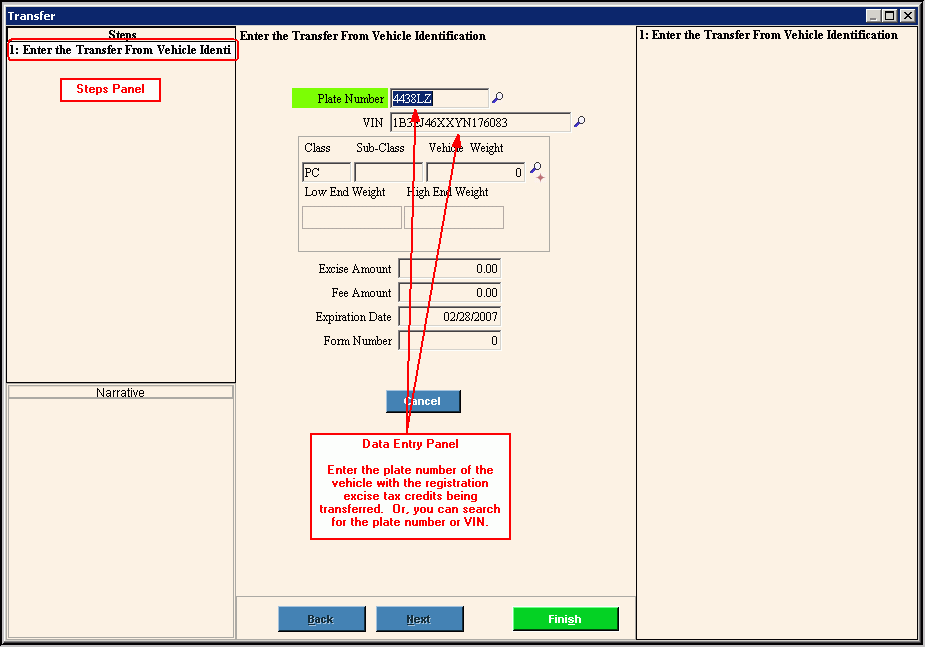
Data Entry Panel - Enter Transfer From Vehicle Identification Step Prompts Tip: To see more information about a field, click the hyperlink for that field name. |
|
Enter the vehicle identification number for the vehicle whose registration fees are being transferred for credit to the new registration. (up to 17 characters) Note:
To search for the VIN, click Search |
|
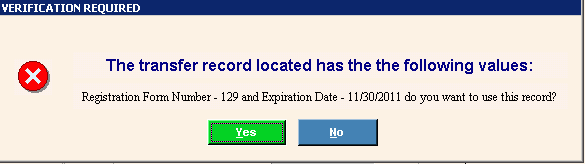
The transfer record located has the following values: |
If you enter a VIN that has a registration in the system or your search returns a VIN with a registration in the system, the following displays:
To indicate this is the correct VIN and registration to use, click Yes. The fields below display with the VIN registration information. To indicate this is not the correct VIN, click No. Then, you can enter another VIN. |
If
the transfer VIN is already in the system, the transfer plate
number displays. To accept the plate number from the transfer,
press [TAB] or enter a
new plate number to use. |
|
If
the transfer VIN is already in the system, the transfer excise
amount displays. To accept, press [TAB].
|
|
Displays the processing fee for the transfer transaction. Press [TAB] to accept. (10.2 numeric) |
|
If
the transfer VIN is already in the system, the transfer expiration
date displays. To accept, press [TAB].
|
|
If
the transfer VIN is already in the system, the transfer MVR-3
form number displays. To accept, press [TAB]. |
|
|
To display the previous step, click Back. Keyboard shortcut: [ALT + b] Tip: Back is not active for the first step. |
|
Tip: Next is not active for this step. |
|
To complete the transfer step, click Finish. Keyboard shortcut: [ALT + s] |
|
To close the wizard without validating or saving the data, click Close. |
 .
.