Click Enter Registration Information in the Steps Panel.
Or,
click Next  or
click Back
or
click Back  until
the data that you want to maintain displays in the Data Entry Panel.
until
the data that you want to maintain displays in the Data Entry Panel.
New Registration Wizard - Enter Registration Information Step
Use the Enter Registration Information Step to enter the registration information for the vehicle including the effective date, expiration date, sticker numbers, veteran decals and vehicle base price. The table following the panel example describes the data entry for this step in the New Registration Wizard.
Tips:
For general information about using wizards, see the Wizard - Introduction.
For more information about working with data in fields, see the Data Entry Guidelines.
Directions:
To display the Enter Registration Information Step in the Data Entry Panel:
1. Open the New Registration Wizard.
2. To navigate to the step that you want to maintain:
Click Enter Registration Information in the Steps Panel.
Or,
click Next or
click Back until
the data that you want to maintain displays in the Data Entry Panel.
Data Entry Panel - Enter Registration Information Step Example:
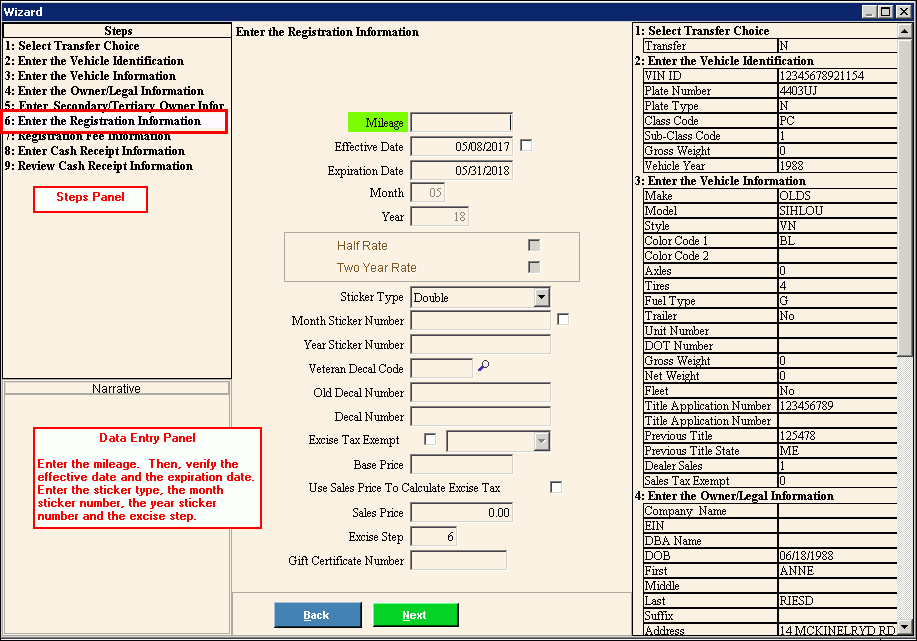
Data Entry Panel - Enter Registration Information Step Prompts Tip: To see more information about a field, click the hyperlink for that field name. |
|
Enter the most recent odometer reading for the vehicle. (12.0 numeric) REQUIRED |
|
To accept the effective date based on the registration month, press [TAB] or enter another effective date. (mmddccyy, slashes and century optional) REQUIRED |
|
Displays the registration expiration date that is based on the registration month and registration year for the vehicle. (mmddccyy, slashes and century optional) REQUIRED Notes:
|
|
Displays the month number registration will expire. (2.0 numeric) REQUIRED |
|
Displays the year the vehicle registration will expire. (4.0 numeric) REQUIRED |
|
To indicate the registration is a half rate registration, click to select this box. Otherwise, leave blank. Note: The Half Rate option is only available for certain types of registrations. |
|
To indicate the registration is a two-year rate, click to select the box. Otherwise, leave blank. Note: The Two Year Rate option is only available for certain types of registrations. |
|
To specify the type of month sticker, click a choice in the drop-down list. |
|
Enter a valid month sticker number that is not issued to another registration. (up to 8 characters) REQUIRED Notes:
|
|
Enter a valid year sticker number that is not issued to another vehicle. (up to 8 characters) REQUIRED Notes:
|
|
Enter the code that uniquely identifies the type of veteran decal. (up to 8 characters) Tip: To view the list of veteran decals, click here. |
|
Enter the decal number, if you are registering a truck camper. (5.0 numeric) Note: Truck campers are assigned decals instead of stickers when you register them. |
|
To indicate that the vehicle registration is exempt from excise tax, click to select the box. To indicate that the vehicle registration should be charged excise tax, leave this box blank. Note: If you click to select Excise Tax Exempt, you can select from the drop-down list the excise tax exempt description to print on the MVR-3 form. |
|
Enter the MSRP or purchase price for the vehicle found on the manufacturer window sticker. (8.0 numeric) REQUIRED |
|
To specify that the sales price should be used to calculate the excise tax, click to select the box. To omit using the sales price to calculate the excise tax, leave this box blank. |
|
Enter the actual price paid for the vehicle, if you are registering a commercial vehicle. (6.2 numeric) |
|
To accept the default excise step, press [TAB] or, enter another excise step to use to determine the mill rate for calculating the excise tax. (1-6) Note: The system sets the Excise Step based on the age of the vehicle. |
|
If the registrant is paying with a gift certificate, enter the certificate number. (up to 5 characters) |
|
|
To display the previous step, click Back. Keyboard shortcut: [ALT + b] |
|
To display the next step, click Next or press [ENTER]. Keyboard shortcut: [ALT + n] |
|
To close the wizard without validating or saving the data, click Close. |
