Click Review Cash Receipt Information in the Steps Panel.
Or,
click Next  until the data that you want to maintain displays in the Data
Entry Panel.
until the data that you want to maintain displays in the Data
Entry Panel.
Duplicate Registration Wizard - Review Cash Receipt Information Step
Use the Duplicate Registration Wizard Step to review and confirm the payment amount tendered and any change due, as well as, verify the receipt number of the registration form. After entering all appropriate information and clicking Finish, the duplicate vehicle registration form prints as the final step in the duplicate registration process. The table following the panel example describes the data entry for this step in the Duplicate Registration Wizard.
Tips:
For general information about using wizards, see the Wizard - Introduction.
For a sample of a printed vehicle registration form, see Vehicle Registration Form Sample.
Directions:
To display the Review Cash Receipt Information Step in the Data Entry Panel:
1. First, from the Registration Inquiry recall the registration to duplicate.
2. Open the Duplicate Registration Wizard.
3. To navigate to the step that you want to maintain:
Click Review Cash Receipt Information in the Steps Panel.
Or,
click Next
until the data that you want to maintain displays in the Data
Entry Panel.
Data Entry Panel - Review Cash Receipt Information Step Example:
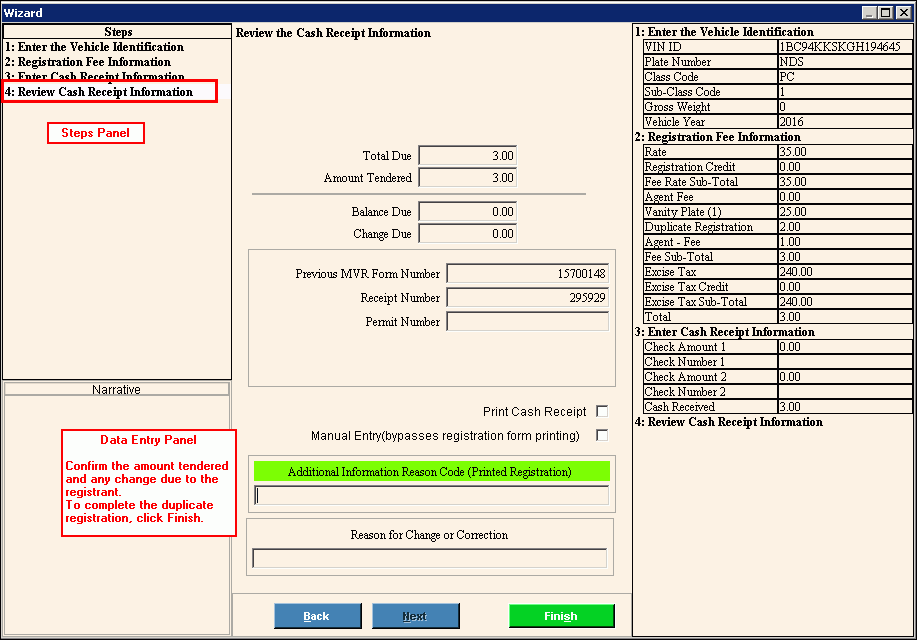
Data Entry Panel - Review Cash Receipt Information Step Prompts Tip: To see more information about a field, click the hyperlink for that field name. |
|
Displays for your reference the total registration amount due. |
|
Displays for your reference the amount tendered by the person registering the vehicle. Amount Tendered = Check Amount 1 + Check Amount 2 + Cash Received |
|
Note: This field is reserved for future use. |
|
Displays the calculated change due to the person registering the vehicle. Change Due = Amount Tendered - Total Due |
|
Previous MVR Form Number |
Displays the registration form pre-printed receipt number. (8.0 numeric) Note: Verify that the registration receipt number is correct. |
Enter the receipt number if you provide a receipt to the registrant to acknowledge their payment. (7.0 numeric) |
|
If you are issuing a booster permit for the registration, enter the permit number for the booster. Otherwise, please leave blank. (6.0 numeric) |
|
To
print a cash receipt for the transaction, click to select the
box. |
|
If
you have already manually typed a MVR-3 registration form and
are simply entering the information to the system, click to select
this box. |
|
Additional Information Reason Code |
Enter any additional reason codes that you want to print on the duplicate MVR-3 form as an informational reason code. (1 character) |
Reason for Change or Correction |
If any information on the registration is changed during the re-registration, enter the reason for the changes. The Reason for Change or Correction prompt can be used as a Reason code 2, Print Priority code 36 or as a simple message. At a later step you can specify the type of reason it is, which determines how it will print.
|
|
To display the previous step, click Back. Keyboard shortcut: [ALT + b] |
|
To validate and save the data for all of the wizard steps and to print the MVR-3 registration form, click Finish. Keyboard shortcut: [ALT + s]
|
|
To close the wizard without validating or saving the data, click Close. |
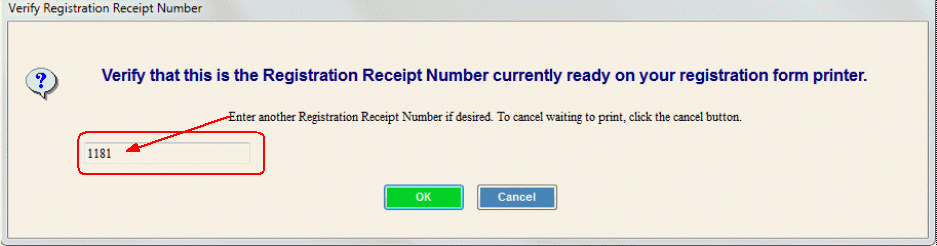
After clicking Finish, if the receipt printer is available for printing, the following window displays:
Note: If the printer is not available for printing because another clerk is printing a registration form, you will get a printer busy message. For more information, see Printer Busy Step.
Data Entry Panel - Review Cash Receipt Information Step - Verify Registration Receipt Number and Printing Prompts Tip: To see more information about a field, click the hyperlink for that field name. |
|
Check the registration receipt form number next in line on the printer you are printing to. If the number matches the number listed in the Verify Registration Receipt Number window, then click OK to continue. Or, if the registration receipt number does not match, then enter the correct number of the registration receipt waiting in the printer. |
|
|
To start the receipt printing if the receipt number is correct, click OK. |
|
Or, to cancel the printing process, click Cancel. |
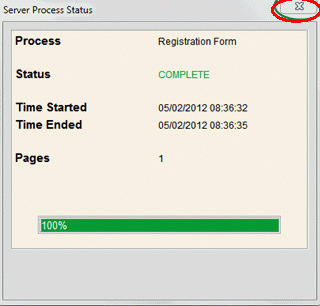
A window similar to below displays while the MVR-3 form prints.
|
|
|
To
close the Status window when the progress bar shows 100%, click
Close |
|
|
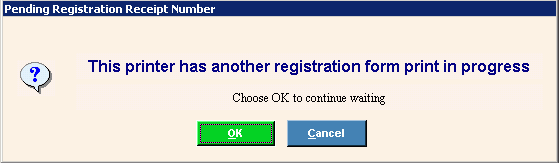
If the printer is busy, the following message displays to alert you:
Data Entry Panel - Review Cash Receipt Information Step - Printer Busy Prompts Tip: To see more information about a field, click the hyperlink for that field name. |
|
This printer has another registration form print in progress |
This means that you will have to wait for a moment while another form finishes printing on your assigned printer, before the printer is available for your print job. This ensures that you have the matching registration receipt number when your registration form prints. |
|
To continue to wait for the printer, click OK.
|
|
To cancel the registration form printing, click Cancel. |
|
|


 Important: