Click Enter Secondary/Tertiary Owner in the Steps Panel.
Or,
click Next  or
click Back
or
click Back  until
the data that you want to maintain displays in the Data Entry Panel.
until
the data that you want to maintain displays in the Data Entry Panel.
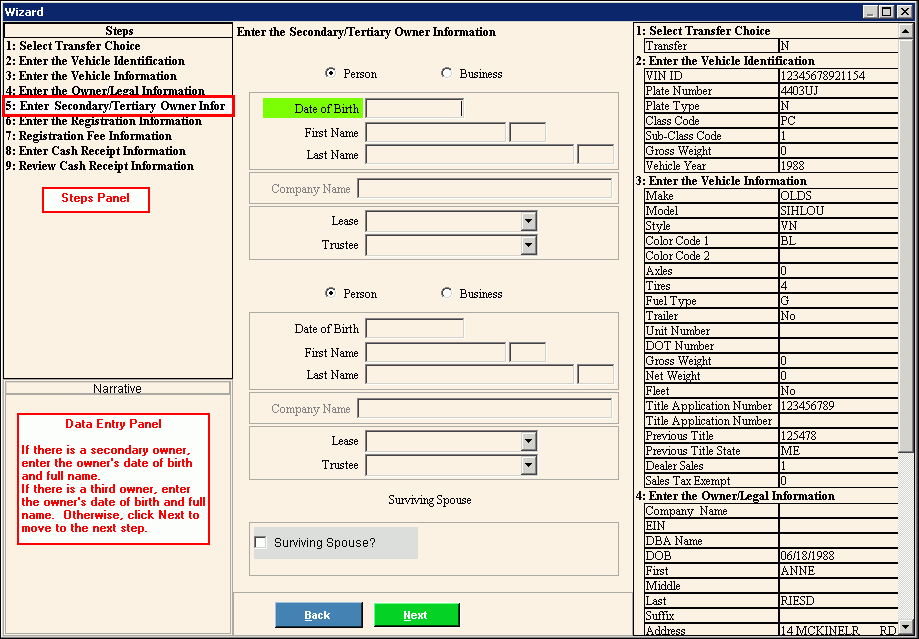
Data Entry Utility Wizard - Enter Secondary/Tertiary Owner Information Step
Use the Enter Secondary Owner Information Step to enter the vehicle's secondary owner name and the third owner name, if applicable. For example, if the vehicle being registered is leased, you can maintain the lessee as the secondary owner. If the vehicle does not have a secondary owner or a tertiary owner you can move to the next step by clicking Next. The table following the panel example describes the data entry for this step in the Data Entry Utility Wizard.
Tip: For general information about using wizards, see the Wizard - Introduction.
Directions:
To display the Enter Secondary/Tertiary Owner Step in the Data Entry Panel:
1. Open the Data Entry Utility Wizard.
2. To navigate to the step that you want to maintain:
Click Enter Secondary/Tertiary Owner in the Steps Panel.
Or,
click Next or
click Back until
the data that you want to maintain displays in the Data Entry Panel.
Data Entry Panel - Enter Secondary/Tertiary Owner Step Example:
Data Entry Panel - Enter Secondary/Tertiary Owner Step Prompts Tip: To see more information about a field, click the hyperlink for that field name. |
|
Person Business |
To indicate the owner is a person, accept the default Person. To indicate the owner is a company, click to select Business. Note: If you select Business, the Company Name field is activated and Date of Birth through Last Name fields are de-activated. |
Enter the secondary owner's date of birth. (mmddccyy - slashes and century optional) Notes:
|
|
Enter the secondary owner's first name. (up to 20 characters) |
|
Enter the secondary owner's middle initial, if applicable. (1 character) |
|
Enter the secondary owner's last name. (up to 50 characters) |
|
Enter the suffix for the secondary owner's name, if applicable. (up to 3 characters) |
|
Enter the company name if a company is the secondary owner of the vehicle. (up to 100 characters) Note: The company name field is only active if Business was selected above. |
|
To specify if the owner is a lessor or a lessee of the vehicle, click a choice in the drop-down list. Otherwise, leave this field blank. Tip: Generally, if the vehicle being registered is leased, you will enter the lessor (owner of the vehicle) as the primary owner and the lessee as the secondary owner. |
|
To indicate the vehicle secondary owner is a trustee, click Trustee in the drop-down list. Otherwise, leave this field blank. |
|
Tertiary Owner |
|
Person Business |
To indicate the owner is a person, accept the default Person. To indicate the owner is a company, click to select Business. Note: If you select Business, the Company Name field is activated and Date of Birth through Last Name fields are de-activated. |
Enter the tertiary owner's date of birth. (mmddccyy - slashes and century optional) Notes:
|
|
Enter the tertiary owner's first name. (up to 20 characters) |
|
Enter the tertiary owner's middle initial, if applicable. (1 character) |
|
Enter the tertiary owner's last name. (up to 50 character) |
|
Enter the suffix for the tertiary owner's name, if applicable. (up to 3 characters) |
|
Enter the company name if a company is the tertiary owner of the vehicle. (up to 100 characters) Note: The company name field is only active if Business was selected above. |
|
To specify the tertiary owner is a lessor or a lessee of the vehicle, click a choice in the drop-down list. Otherwise, leave this field blank. |
|
To indicate the vehicle tertiary owner is a trustee, click Trustee in the drop-down list. Otherwise, leave this field blank. |
|
Surviving Spouse? |
To indicate that the owner is a surviving spouse, click to check the Surviving Spouse box. If this is not a surviving spouse, leave this box blank. Note: If Surviving Spouse box is checked, the primary owner name can be changed and the appropriate Priority and Reason codes print on the registration form to indicate a surviving spouse. |
|
To display the previous step, click Back. Keyboard shortcut: [ALT + b] |
|
To display the next step, click Next or press [ENTER]. Keyboard shortcut: [ALT + n] |
|
To close the wizard without validating or saving the data, click Close. |
