To see detailed steps for entering an example TextTextText, refer to the YourStep-By_StepTopicHere.
1. Click XYZMenu from the Menu Bar.
2. Click XXX.
3. Click
XXX.
Tip: Or,
use the keyboard shortcut:
[ALT]
[?] [?] [?].
Basic Method:
1. Click XYZMenu from the Menu Bar.
2. Click XXX.
3. Click XXX.
Advanced Methods:
Click
YourProcessName
ReplaceImageHere on
the Toolbar.
Click
YourTopicName
ReplaceImage on
the Toolbar.
Or, click
the following sequence:
MenuName from the Menu
Bar; SubMenuName; SubMenuName;
and YourTopicName.
Or, use the keyboard shortcut: [ALT] [?] [?] [?].
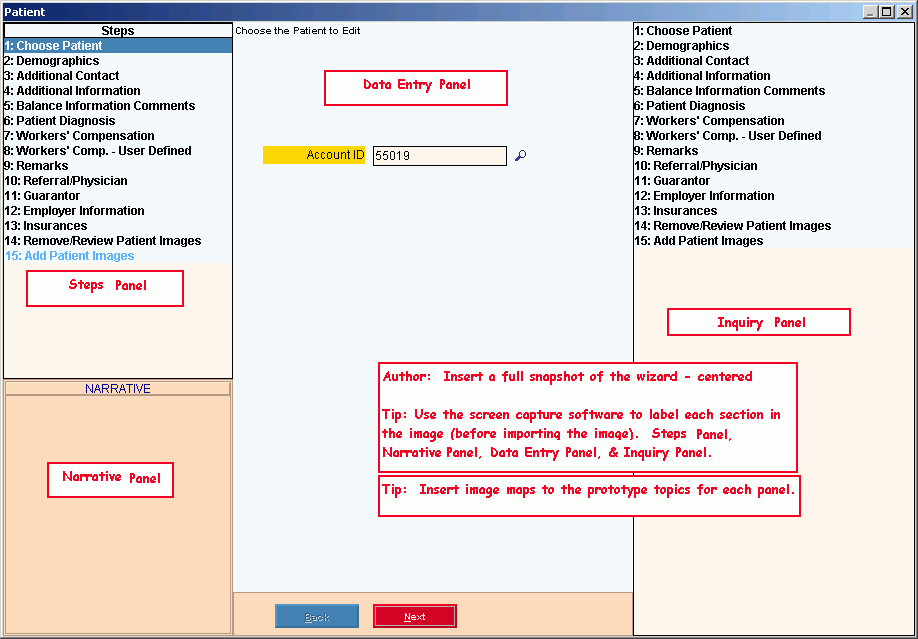
YourWizardName Wizard Window Example:
Tip:
To see
general instructions for each panel in the example below, the cursor becomes
a hand
when you position the cursor over the field or panel.
Click once
to display the associated topic.
Note: This
wizard only maintainsdeletes YourRecordNames. To
create YourRecordNames, use the YourWizardNameLinked Wizard.
Author: Delete above or below, as appropriate.
IMPORTANT: To
avoid losing data, the wizard automatically validates and saves your data
when you click Finish.
1. Open the YourWizardName Wizard.
2. At
the YourFirstStepName Step, enter the YourKeyField
in the Data Entry
Panel.
Tip: To
Search for aXan YourRecordName,
click Search
.
3. To
advance to the next step, simply press [ENTER].
Tip: For
more information about moving around within the Wizard, see the Wizard
- Navigation topic.
4. To position the pointer to the information that you want to enter, press [TAB] or click the field using the mouse.
5. Enter the data changes.
6. To
finish entry and save the changes, click Finish
, or press [ENTER].
Keyboard shortcut: [ALT
+ s]
Note: This
wizard only createsdeletes YourRecordNames. To
maintain YourRecordNames, use the YourWizardNameLinked Wizard.
Author: Delete above or below, as appropriate.
IMPORTANT: To
avoid losing data, the wizard automatically validates and saves your data
when you click Finish
.
1. Open the YourWizardName Wizard. The first step displays in the Data Entry Panel.
2. To
load the YourRecordName, enter the YourKeyField
in the Data Entry Panel.
Tip: To
Search for aXan YourRecordName,
click Search
.
3. To
navigate to the
step that you want to maintain, click the name of the step in the Steps
Area,
Or, click Next
or
click Back
until
the correct step displays.
4. To position the pointer to the information that you want to change, press [TAB] or click the field using the mouse.
5. Enter the data changes.
6. If there are any other steps requiring changes, navigate to the proper step and make the changes.
7. To
finish entry and save the changes, click Finish
, or press [ENTER].
Keyboard shortcut: [ALT
+ s]
Note: This
wizard only createsmaintains YourRecordNames. To
delete YourRecordNames, use the YourWizardNameLinked Wizard.
Author: Delete above or below, as appropriate.
1. Open the YourWizardName Wizard. The first step displays in the Data Entry Panel.
2. To
load the YourRecordName that you want to delete, enter the YourKeyField
in the Data Entry Panel.
Tip: To
Search for aXan YourRecordName,
click Search
.
3. Click
Next
to display
the confirmation step.
Keyboard shortcut: [ALT
+ n]
4. Confirm that you have loaded the correct record.
5. To
delete the record, click Finish
, or press [ENTER].
Keyboard shortcut: [ALT
+ s]
Reset 1099 Totals - Report Sample
This topic is under construction.