Tip: To Search for a Customer, click Search
 .
.Customer To Bankruptcy Wizard - Specify Amount To Bankruptcy Step
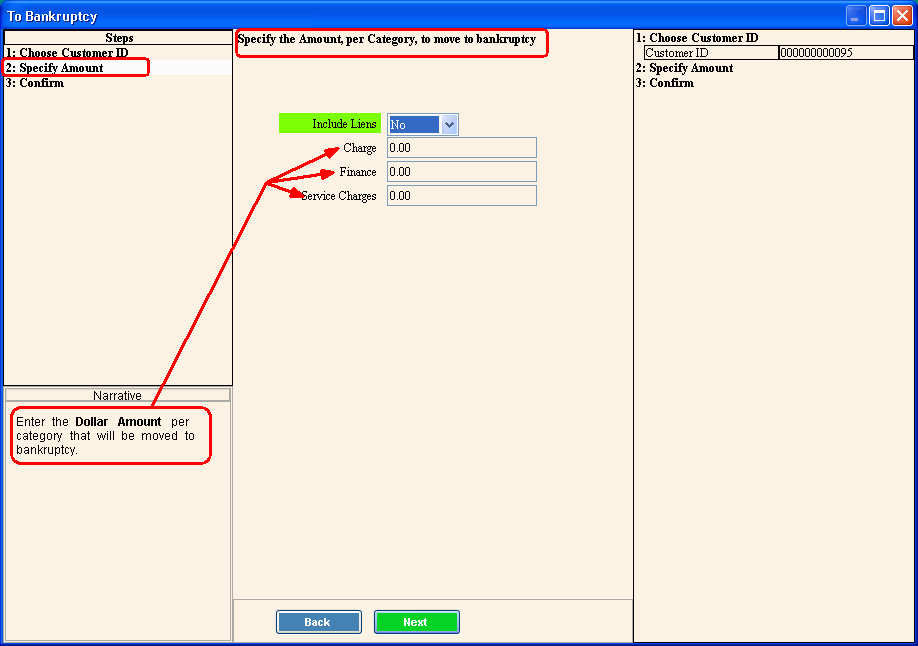
Use the Specify Amount Step to specify the dollar amount of the customer balance to move to bankruptcy. You can move all of the balance or only part of the customer's balance. The amount that is moved to bankruptcy will be excluded from the customer's statement. The table following the panel example describes the data entry for this step in the Customer To Bankruptcy Wizard.
Tips:
For general information about using wizards, see the Wizard - Introduction.
For more information about working with data in fields, see the Data Entry Guidelines.
To display the Specify Amount Step in the Data Entry Panel:
1. Open the Customer To Bankruptcy Wizard.
2. To load the Customer, enter the Customer ID in the Data Entry Panel.
Tip: To Search for a Customer, click Search .
3. To navigate to the Specify Amount step, click Next  .
.
Data Entry Panel - Specify Amount To Bankruptcy Step Example:
|
Data Entry Panel - Specify Amount Step Prompts Tip: To see more information about a field, click the hyperlink for that field name. |
|
|
Include Liens |
To move lien dollar amounts to bankruptcy, click Yes. |
|
To accept the charge dollar amount to move to Bankruptcy, press [TAB] or enter another charge dollar amount. (-10.2 numeric) |
|
|
To accept the Finance dollar amount to move to bankruptcy, press [TAB] or, enter another finance dollar amount. (-10.2 numeric) |
|
|
Service Charges |
To accept the service charges dollar amount to move to bankruptcy, press [TAB] or, enter another service charge dollar amount. (-10.2 numeric) |
|
|
To display the previous step, click Back. Keyboard shortcut: [ALT + b] Tip: Back is not active for the first step. |
|
|
To display the next step, click Next or press [ENTER]. Keyboard shortcut: [ALT + n] Tip: Next is not active for the last step. |
|
|
To close the wizard without validating or saving the data, click Close. |

