Open the Customer Add Reason Code Message Wizard.
Enter the Customer ID and click Next  .
.
Customer Add Reason Code Message Wizard - Add Reason Step
Use the Add Reason Step to add a reason code and the applicable message text to a customer. The table following the panel example describes the Add Reason Step panel for the Customer Add Reason Code Message Wizard.
Tips:
For general information about using wizards, see the Wizard - Introduction.
For more information about working with data in fields, see the Data Entry Guidelines.
To display the Add Reason Step in the Data Entry Panel:
Open the Customer Add Reason Code Message Wizard.
Enter the Customer ID and click Next .
Data Entry Panel - Add Reason Step Example:
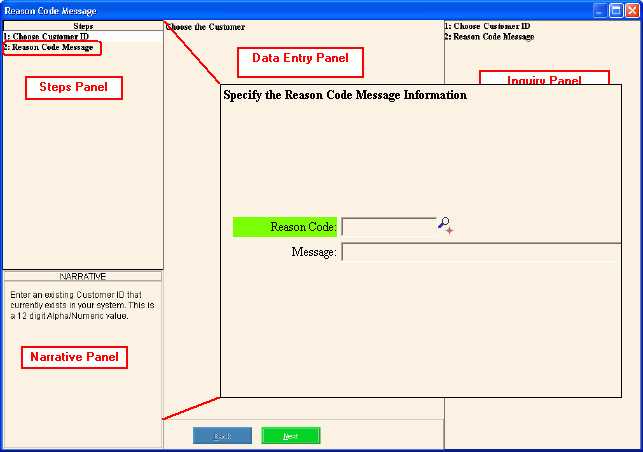
|
Data Entry Panel - Add Reason Step Prompts Tip: To see more information about a field, click the hyperlink for that field name. |
|
|
Enter the Reason Code ID to assign as the message for the customer. (up to 5 characters) Tips:
|
|
|
Enter an additional line of text for the customer reason, if applicable. (up to 80 characters) |
|
|
|
To display the previous step, click Back. Keyboard shortcut: [ALT + b] |
|
|
Tip: Next is not active for the last step. |
|
|
To validate and save the data for both of the wizard steps, click Finish. The wizard window closes when the save is complete. Keyboard shortcut: [ALT + s] |
|
|
To close the wizard without validating or saving the data, click Close. |
 or press
  or press