 in the Results Area.
Service Call History Inquiry - Service Call History Results Area
Use the Service Call History Results Area to view the results of a historical service call. The table following the window example describes the Service Call History Results Area for the Service Call History Inquiry.
To display the Service Call History Results Area:
1. Click Service Mgt from the Menu Bar.
2. Click History.
3. Click Service History Inquiry.
Tip: Or, use the keyboard shortcut: [ALT] [m] [h] [i].
4. Click Results in the Results Area.
Service Call History Inquiry - Service Call History Results Area Example:
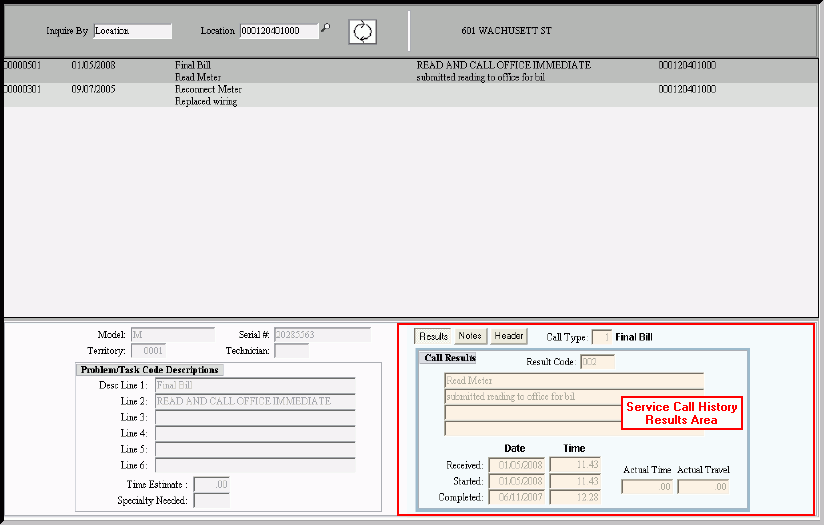
|
Service Call History Inquiry - Service Call History Results Area Field Descriptions Tip: To see more information about a field, click the hyperlink for the field name. |
|
|
Displays the Call Type and the associated description. |
|
|
Displays the Result Code that describes the final outcome of the service call. |
|
|
Result Description Lines 1 - 4 |
Displays the Result Description lines. |
|
Displays the date the service call was received. |
|
|
Displays the time of day the service call was received. |
|
|
Displays the date the service work was started. |
|
|
Displays the time of day the service call work was started. |
|
|
Displays the Completed Date for the service call. |
|
|
Displays the Completed Time for the service call. |
|
|
Displays the billable Actual Time, which is the time that it took to complete the service call. |
|
|
Displays the amount of time the technician spent traveling to and from the location of the service call, if applicable. |
|