Print Location Labels Instructions
Use the Print Location Labels routine to print mailing labels for locations. You can specify if you want the owners' or tenants' (or both owner and tenant) name and address to print on the labels.
Tips:
This routine uses the Location information to generate data in an XML format and sends it to a job site file that you specify.
During installation, the label format and the job site file (job to the print file) are defined using your specifications. For more information, contact NDS Technical Support.
For more information about running reports, see Print View.
A copy of the report is saved to Report History each time the report is run.
A sample of printed Location Labels is not available because Location Labels are uniquely tailored to your installation.
To open:
1. Click Reports from the Menu.
2. Click Miscellaneous.
3. Click Print Location Labels.
Or, use the keyboard shortcut: [ALT] [e] [m] [m] [o].
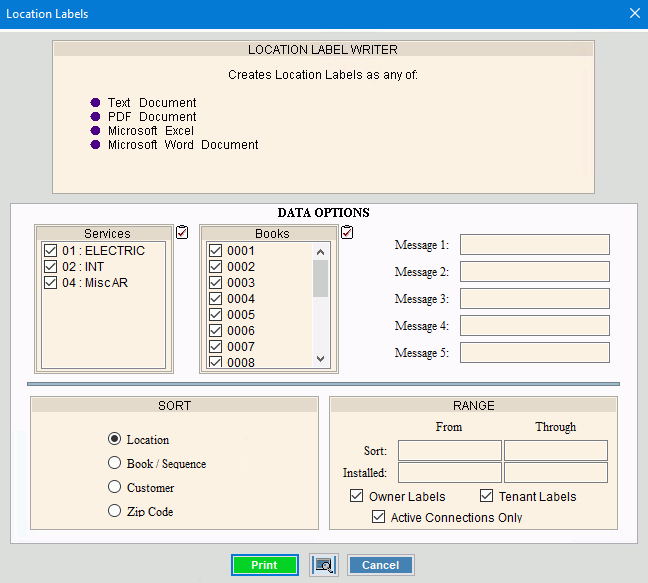
Print Location Labels Window Example:
Location Labels Prompts
|
|
To select the Services to print, click to check the appropriate Services listed. Tip:
To quickly select or de-select
all Services listed,
click Check All |
|
To select the Books to print, click to check the appropriate Books listed. Tip:
To quickly select or de-select all
Books listed, click Check All
|
|
Enter up to five lines of text to print on the labels, if applicable. (up to 42 characters each line) |
|
Sort |
To choose a sort option, click to select the appropriate button. Sort Options: |
Sort From - Through |
To limit the labels to a range of Locations, Book/Sequences, or Customers, enter the beginning item in the range. To limit the labels to a range of Locations, Book/Sequences or Customers, enter the ending item in the range. Tip: To include all Locations, Book/Sequences or Customers, leave From and Through blank. |
Installed From - Through |
To limit the labels to a range of Installed Dates, enter the beginning date in the range. (mm/dd/ccyy) To limit the labels to a range of Installed Dates, enter the ending date in the range. (mm/dd/ccyy) Tip: To include all Installed Dates, leave From and Through blank. |
Owner Labels |
To print the Owners' name and address lines on the Location Mailing Labels, select this box. Tips:
|
Tenant Labels |
To print the Tenants' name and address lines on the Location Mailing Labels, select this box. Tips:
|
Active Connections Only |
To only print active connections, select this box. |
|
To begin printing, click Print, or press [ENTER]. Keyboard shortcut: [ALT + p] Or to
print to the Print
View window, click Print
View To escape from the print routine, click
Cancel Keyboard shortcut: [ALT + c] |
Server Process Status |
|
Status |
Displays information pertaining to the various phases of the reporting process to guide you. Note: The status displays Complete when the process is ended. In addition, the Message window displays Time Started and Time Ended to alert you when the routine is complete. |
|
To close the window when the report
is complete, click Close
|

 .
.

 .
.