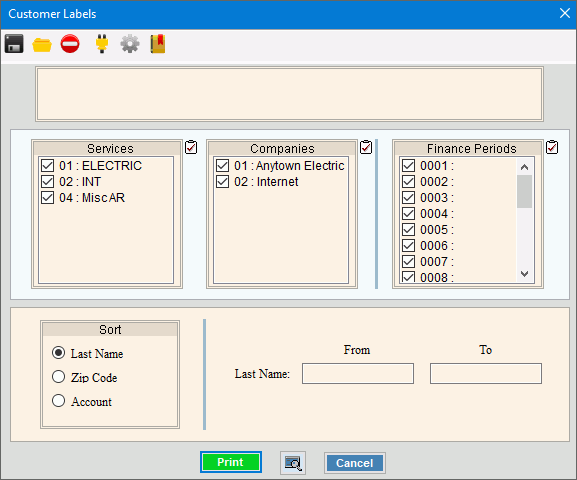
Print Customer Labels
Use Print Customer Labels to print mailing labels containing the customers' account numbers and mailing addresses.
Tips:
For more information about running reports, see Print View.
For more information about the buttons on the toolbar, see the Reporting Toolbar.
A copy of the report is saved to Report History each time the report is run.
To see an example of the report, click Print Customer Labels Sample.
To open:
1. Click Reports from the Menu.
2. Click Miscellaneous.
3. Print Customer Labels.
Or, use the keyboard shortcut: [ALT] [e] [m] [m] [l].
Print Customer Labels Window Example:
Print Customer Labels Options
|
|
To select the Services to print, click to check the appropriate Services listed. Tip:
To quickly select or de-select
all Services listed,
click the |
|
To select the Companies to print, click to check the appropriate Companies listed. Tip:
To quickly select or de-select all
Companies listed, click the |
|
To select the Finance Periods to print, click to check the appropriate Finance Periods listed. Tip:
To quickly select or de-select all
Finance Periods listed, click the |
|
Sort |
To choose a sort option, click to select the appropriate button. Sort Options: |
From - To |
To limit the labels to a range of customer last names, Zip Codes or Accounts, enter the appropriate beginning item in the range. To limit the report to a range of last names, zip codes or accounts enter the desired ending item in the label range. Tip: To include all last names, zip codes or accounts, leave From and To blank. |
|
To begin printing, click Print, or press [ENTER]. Keyboard shortcut: [ALT + p] Or to
print to the Print
View window, click Print
View To escape from the print routine, click
Cancel Keyboard shortcut: [ALT + c] |
Server Process Status |
|
Status |
Displays information pertaining to the various phases of the label printing process to guide you. Note: The status displays Complete when the process is ended. In addition, the Message window displays Process Ended and Time Ended to alert you when the routine is complete. |
|
To close the window when the report
is complete, click Close
|


 .
.