Lien Discharge Report Instructions
Use the Lien Discharge Report to list the customers whose liens have been discharged because the lien has been paid in full. The report includes the date the lien was paid. You can tailor the report to specify which Services, Companies and Finance Periods to view.
Tips:
Do not confuse the Lien Discharge Report with the Lien Release Report and the lien Placement Report. All three lien reports provide different lien information.
For more information about running reports, see Print View.
For more information about the buttons on the toolbar, see the Reporting Toolbar.
A copy of the report is saved to Report History each time the report is run.
To see an example of the report, click Lien Discharge Report Sample.
To open:
1. Click Reports from the Menu.
2. Click Miscellaneous.
3. Lien Discharge Report.
Or, use the keyboard shortcut: [ALT] [e] [m] [m] [l].
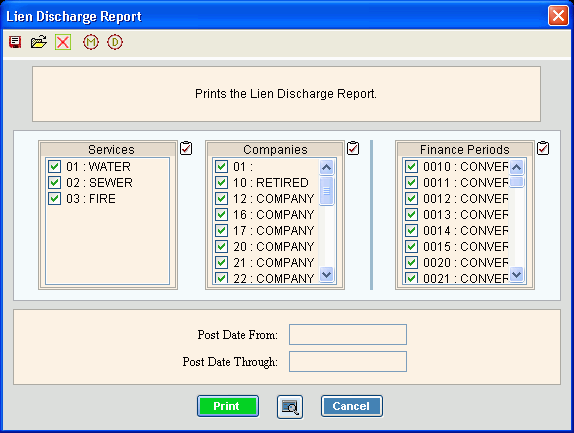
Lien Discharge Report Window Example:
Lien Discharge Report Options
|
|
To select the Services to print, click to check the appropriate Services listed. Tip:
To quickly select or de-select
all Services listed,
click the |
|
To select the Companies to print, click to check the appropriate Companies listed. Tip:
To quickly select or de-select all
Companies listed, click the |
|
To select the Finance Periods to print, click to check the appropriate Finance Periods listed. Tip:
To quickly select or de-select all
Finance Periods listed, click the |
|
Post Date From - Through |
To limit the report to a range of dates, enter the appropriate beginning Post Date in the range. To limit the report to a range of dates, enter the desired ending Post Date in the range. Tip: To include all dates, leave From and Through blank. |
|
To begin printing, click Print, or press [ENTER]. Keyboard shortcut: [ALT + p] Or to
print to the Print
View window, click Print
View To escape from the print routine, click
Cancel Keyboard shortcut: [ALT + c] |
Server Process Status |
|
Status |
Displays information pertaining to the various phases of the printing process to guide you. Note: The status displays Complete when the process is ended. In addition, the Message window displays Time Started and Time Ended to alert you when the routine is complete. |
|
To close the window when the report
is complete, click Close
|


 .
.