Connection Estimates Report Instructions
Use the Connection Estimates Report Instructions to report the meters that have had estimated meter readings. You can choose to run the report for meters with consecutive reading estimates or for the meters with year-to-date estimates. You can limit the report to meters that have had a specified number of estimated meter readings.
Tips:
For more information about the buttons on the toolbar, see the Report Writer Toolbar.
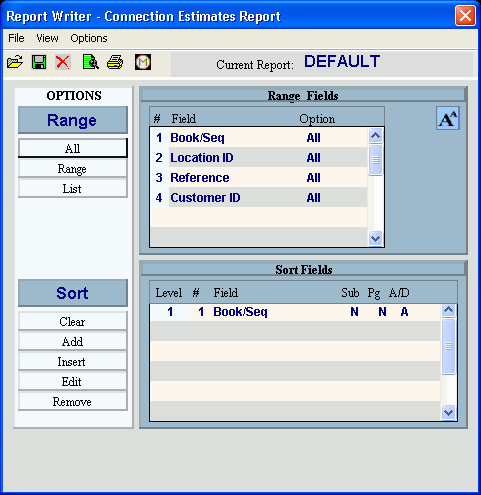
At the Report Writer window, you can change the selection and sort options for the report. For more information, refer to the Report Writer Overview.
To see an example of the report, click Connection Estimates Report Sample.
To open click Reports from the
Menu. Then click
Miscellaneous and click
Connection Estimates Report.
Tip: Or, use the keyboard
shortcut: [ALT] [e] [m] [m]
[e].
Connection Estimates Report Window Example:
Connection Estimates Report Writer Prompts
|
|
Report Writer Prompts |
Review the Report Writer options and make changes, if applicable. To send the report to the Print View
window, click View Report
Note: For more information, refer to the Report Writer Overview. |
|
To begin printing to the Windows® default printer, click Print, or press [ENTER]. Keyboard shortcut: [ALT + p] |
|
To run the routine and print to the Print View window, click here. |
|
To escape from the print routine, click Close. Keyboard shortcut: [ALT + c] |
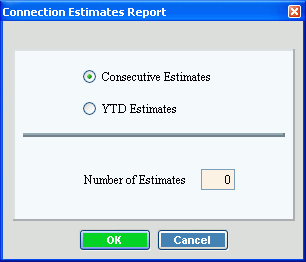
After selecting the report writer options, the following options display.
|
|
Consecutive
Estimates |
To select to report meters with consecutive estimates, click Consecutive Estimates. To select to report the number of reading estimates year-to-date, click YTD Estimates. |
Number of Estimates |
To limit the report to the meters that have had a specified number or more of reading estimates, enter the number of estimates here. (2.0 numeric) |
|
To begin processing the report, click OK or press [ENTER]. Keyboard shortcut: [ALT + o] To escape from the print routine, click
Cancel Keyboard shortcut: [ALT + c] |


 .
.



 .
.