Line Item Type Maintenance
Use Line Item Type Maintenance to maintain information about the types or categories of items or assets your utility has for line mapping. For example, if you are an electric utility, you can have poles, transformers, substations and circuits as types of line items. You can assign graphics and color to your various types to make them easier to identify in the line map.
Tip: For more information, see Line Mapping View.
To open:
1. Click Daily Work from the Menu.
2. Click File Maintenance.
3. Click Code Maintenance.
4. Click Line Item Maintenance.
5. Click Line
Item Type Maintenance.
Tip: Or, use the keyboard
shortcut: [ALT] [y] [m] [c]
[l] [ENTER].
Line Item Maintenance Window Example:
Line Item Type Maintenance Prompts
|
|
To create
a new record, enter the unique identifier to assign to the type
of line item and then click Retrieve
Or, to view all of the line item types,
click Search
REQUIRED Tip: To indicate that
you are building a new line item type ID, New |
|
|
To update the new or changed information, click Save or press [ENTER]. Keyboard shortcut: [ALT + s] |
To avoid losing data, you must save new or changed records. |
|
Enter the title to be assigned to the line item type. (up to 14 characters) |
|
Enter the description associated with the line item type. (up to 40 characters) |
|
Enter the label for this line item type. (up to 12 characters) |
|
Enter the abbreviated label for the line item type. (up to 3 characters) |
|
To select the service code associated with the type of line item, click a choice in the drop-down list. |
|
To select a graphic to represent the line item type, click a choice in the drop-down list. |
|
To assign a color to represent the line item type, click a choice in the drop-down list. Note:
To search for a Color ID, click Search
|
|
Editing a Type |
1. To display the record
to be changed, enter the line
item type ID and click Retrieve
2. Press [TAB] or click the field the field to change. 3. Enter the data changes. 4. To complete the edit
process, click Save
|
Deleting a Type |
To delete a line item type: 1. To display the record
to be deleted, enter the Line Item Type ID and click Retrieve
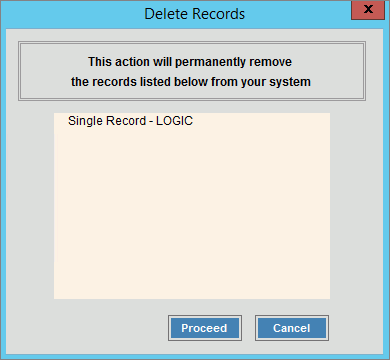
2. Click File from the Menu, and next click Delete. Keyboard shortcut: [ALT] [f] [d] 3. At the Delete Records
prompt, click Proceed
to delete the record, or click Cancel
to escape. |


 . From the Search
list you can select the record to change or delete.
. From the Search
list you can select the record to change or delete. displays near the line item type ID. Default
entries display and the first field is
displays near the line item type ID. Default
entries display and the first field is 
 CAUTION
 or press
  CAUTION:
To avoid losing data, you must save new or changed records.
CAUTION:
To avoid losing data, you must save new or changed records.
 , or press