Enhanced Inquiry - Service Management View Automation
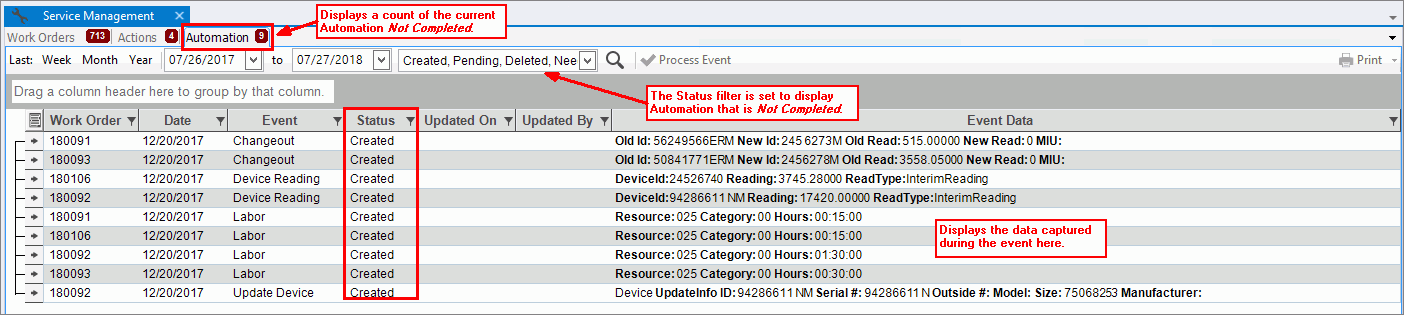
Use the Automation tab on the Service Management view to see Mobile Work Order Automation events. These Automation Events can be updated and processed manually here as well. Mobile Work Order Automation allows EDIFICE to automatically perform certain operations using data from completed mobile work orders. When a completed work order is sent back to EDIFICE the event is performed. There are several types of available automations. In addition, certain other information is automatically updated from mobile work orders and not through an Automation event.
Certain Automation events will generate a final billing or billing transaction that will need to be processed in the appropriate billing routines. These final billing or billing transactions are processed separately on the journals, statements and posting screens. To see the transactions on the respective journal and to process the transactions, the Only Work Order Automation box must be checked.
Notes:
The Service Management Automation view is only available in the EDIFICE Inquiry. Work Order automation is only available for the Mobile Work Orders module as the data is generated from there.
Do not confuse Automation with Work Order Actions. Automation is a separate function from Actions, which are a check list of tasks or workflow of things that need to be done manually after a work order is completed.
To activate Automations, see Work Order Automation Settings Maintenance.
From the Enhanced Inquiry, click View, click Service Management and then, click Automation.
Enhanced Inquiry - Service Management View Automation Example:
Service Management View - Automation Prompts |
|
Managing Automation The Automation
tab displays a count of the current Automations associated with
the selected statuses and the specified date range as seen here:
|
|
Last |
To limit the list of Automations to ones entered as of the last week, month or year, click a choice: Week, Month or Year |
Date Range |
To limit the list of Automations to ones entered during a specified time period, enter the beginning and ending dates in the dates fields. |
Status |
To specify the Automation to display based on their status, click to check the desired boxes. Multiple Statuses can be selected. Notes:
|
|
To
manually process an event, click to highlight the event and then,
click Process Event. Manual processing is only
required if an event is set to be processed manually and is noted
by an Automation Status of Created
as seen above. |
Right-click Options To see additional options, right-click. Below is an example.
|
|
|
To change the Status of the Automation to completed without processing it, select Mark Completed. |
|
To change the Status of the highlighted Automation to deleted without processing it, select Delete. |
|
To load the location information associated with the highlighted Automation, select Load Location. |
|
To expand all rows in the grid, click Expand All. To collapse all rows in the grid, click Collapse All. |
|
To copy the information highlighted in the selected row or rows, click Copy. |
Printing & Exporting Functions These functions can be handy for further manipulating or formatting the data or sending copies to coworkers. In addition, Print and Print Preview functions are available.
|
|
|
To begin printing the displayed information to the default Windows printer, click Print. The Print dialog opens. |
|
To print to the Print Preview window, click Print Preview. |
|
To create a Microsoft Excel spreadsheet from the selected information, click Save as Excel. Then, follow the normal Windows® save procedure listed below. Tips:
|
|
To create a PDF document from the selected information, click Save as PDF. Then, follow the normal Windows® save procedure listed below. |
|
To create a Microsoft Word document from the selected information, click Save as Word. Then, follow the normal Windows® save procedure listed below. Tips:
|
Window Save As |
The Windows Save As steps:
|
 . The
count will change as the date range and selected Statuses are
changed.
. The
count will change as the date range and selected Statuses are
changed.










 .
.