Tasks
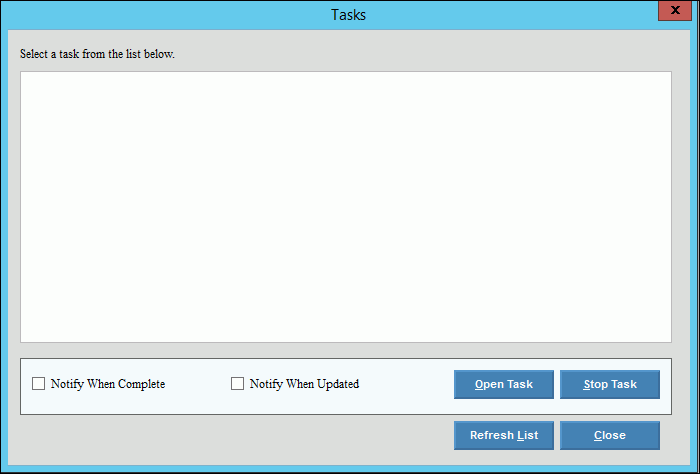
Use the Tasks routine to provide the a list of any background processes that are currently running. You can select to be notified when a selected process completes or when the process is updated.
Directions:
To open:
1. Click Utilities from the menu.
2. Click Tasks.
Tip: Or, use the keyboard
shortcut: [ALT] [t] [t].
Tasks Window Example:
Tasks Prompts Options
|
|
Tasks |
Displays a list of all tasks currently processing. |
Notify When Complete |
To notify you when a task is finished, click to highlight the desired task and then, click to check the Notify When Complete box. To omit notifying you when a task is finished, leave this box blank. |
Notify When Updated |
To notify you when a task is updated, click to highlight the desired task and then, click to check the Notify When Updated box. To omit notifying you when the selected task is updated, leave this box blank. |
Start Task |
To start a task, click to highlight the desired task and then, click Start Task. |
Stop Task |
To stop a task, click to highlight the desired task and then, click Stop Task. |
Refresh List |
To re-display the most current list, click Refresh List. |
Close |
To close the Task window, click Close. |
